 Forgot your password ?
  Back to login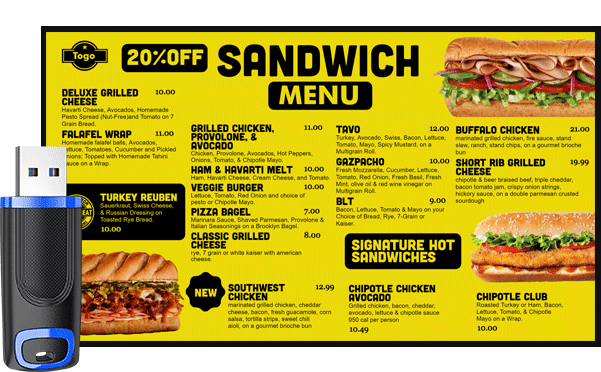
(USB Backup, Samsung App, Firestick, and Browser Displays)**
When it comes to digital menu boards, flexibility is everything. Restaurants need displays that are reliable, easy to update, affordable, and—most importantly—built with backup options when the internet goes down .
That’s exactly why DsMenu supports multiple ways to run your digital menus, giving restaurants complete freedom to choose the setup that fits their location, budget, and technology level.
In this guide, we’ll break down all the display options DsMenu offers and how each one can keep your menu running 24/7—even during outages.
1. USB Display Mode (Emergency Backup When Internet Fails)
Internet outages happen. But your menu can’t go offline.
DsMenu offers a USB emergency display option, letting you export your final menu designs as videos or images. These files can be loaded onto any TV or screen with USB playback.
Best for:
- Restaurants with unstable WiFi
- Low-tech locations
- Backup plans for franchise operators
- Any location that must avoid black screens during downtime
How It Works:
1. Design your menu in DsMenu.
2. Export the board as a video or image.
3. Load onto a USB drive.
4. Plug into your TV.
Your menu stays running even if your internet doesn’t.
2. Samsung DsMenu App (Native Smart Display Support)
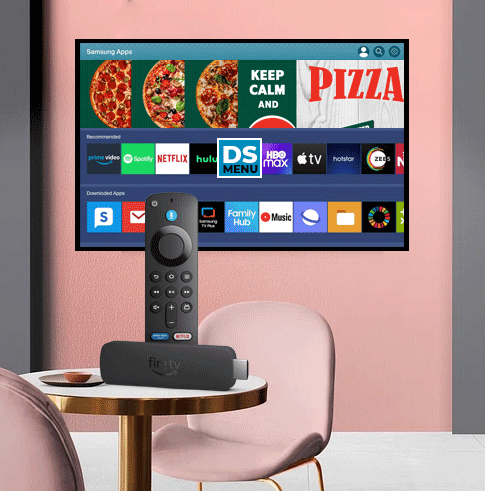
Samsung commercial displays (and many consumer models) allow you to install the DsMenu app directly on the TV—no extra hardware needed.
Benefits:
- Runs your menu through a secure app
- Automatic updates
- Remote content changes
- No external devices
- Great for large chains with strict hardware standards
Samsung + DsMenu is perfect for:
- Franchise rollouts
- Multi-unit restaurants
- Operators who want a clean setup (no wires, no sticks)
This is the most professional, future-proof display option available.
3. Amazon Firestick (Affordable, Powerful, and Easy to Install)
One of the most popular DsMenu setups is using an Amazon Firestick plugged into any TV.
Why? It’s:
- Affordable
- Fast to set up
- Easy to manage remotely
- Ideal for scaling across multiple stores
Install the DsMenu app on the Firestick and your menu loads instantly. It’s a perfect option for restaurants wanting a reliable solution without investing in proprietary hardware.
Great for:
- Small restaurants
- Food trucks
- Fast casual chains
- Operators replacing old USB or slideshow systems
4. Any Screen Using a Simple URL (Works on Any Browser)
This is the most flexible option of all.
DsMenu can run on any device with a browser—TV, computer, tablet, Android box, Windows PC, smart display, or kiosk.
You simply open the unique DsMenu URL and your digital menu board displays instantly.
Why restaurants love URL-based displays:
- Works on any hardware
- Instant updates
- Lightning-fast scheduling
- Remote control from anywhere
- Zero installation required
This option is perfect for restaurants that already have digital signage screens or want the freedom to choose their hardware.
Which Display Option Is Best for Your Restaurant?
Here’s a quick snapshot:
| Display Option | Best For | Pros |
|---|---|---|
| USB Backup | Outages & emergency failsafe | Offline reliable, no internet needed |
| Samsung DsMenu App | Professional setups, large chains | No hardware needed, clean install |
| Amazon Firestick | Small/medium restaurants | Affordable, simple, scalable |
| Browser URL | Any screen, full flexibility | Works everywhere, instant updates |
Final Thoughts
Every restaurant is different—that’s why DsMenu is built to work on your terms, not tied to a single device or display system.
Whether you’re running a single food truck or managing dozens of franchise locations, DsMenu gives you:
Multiple display methods Automatic failover options Emergency backups Hardware flexibility Easy multi-location management